When your URSA Cine Immersive is pushing out 11.6 TB of OCF per hour shooting BRAW 5:1 at 90 fps, offload speed is the difference between staying on schedule and shutting the camera down. Every minute really does count.
With data volumes this big, capacity and protection matter just as much. You want the whole day’s OCF on a single, secure, encrypted device, not scattered across loose drives.
Pair the Blackmagic Media Dock (with SMB3 Multichannel) with an iodyne Pro Data 96 TB or 192 TB, and you get:
- RAID-6 containers for on-set drive-failure redundancy protection with encryption
- Multi-10G ingest from the Media Dock into Pro Data
- Sustained multi-GB/s write performance, so full 8 TB loads ingest at a consistent speed all day
- Enough capacity to keep multiple days of OCF online
This setup is the fastest way to offload URSA Cine Immersive Media Modules over 10G to a RAID-6 protected, encrypted container on Pro Data.
Offload Performance
Measured from 8 TB Media Module in the Media Dock to a Pro Data container (always encrypted) over:
- 2 × 10G (Mac mini built-in 10G + Sonnet Solo 10G) with SMB3 Multichannel
- Thunderbolt multipath from Mac Mini to Pro Data.
Media Module Size |
RAID-6 TruePut Offload Time |
RAID-0 TruePut Offload Time |
8 TB |
~1 hr 21 min |
~1 hr 6 min |
16 TB |
~2 hr 42 min |
~2 hr 12 min |
- RAID-6: Drive-failure redundancy protection.
- RAID-0: Slightly faster without drive-failure protection. You’ll need to handle redundancy/backup separately.
What That Means On Set
An 8 TB Media Module from the URSA Cine Immersive holds roughly:
- ~40 minutes of OCF at BRAW 5:1, 90 fps
- ~66 minutes of OCF at BRAW 8:1, 90 fps
- ~98 minutes of OCF at BRAW 12:1, 90 fps
With the setup above:
- A full 8 TB module → RAID-6 on Pro Data in about 1 hr 21 min
- A full 8 TB module → RAID-0 in about 1 hr 6 min
Pro Data supports encryption, RAID-6, and multi-host access, so your backup strategy can grow with the job.
Workflow Topology
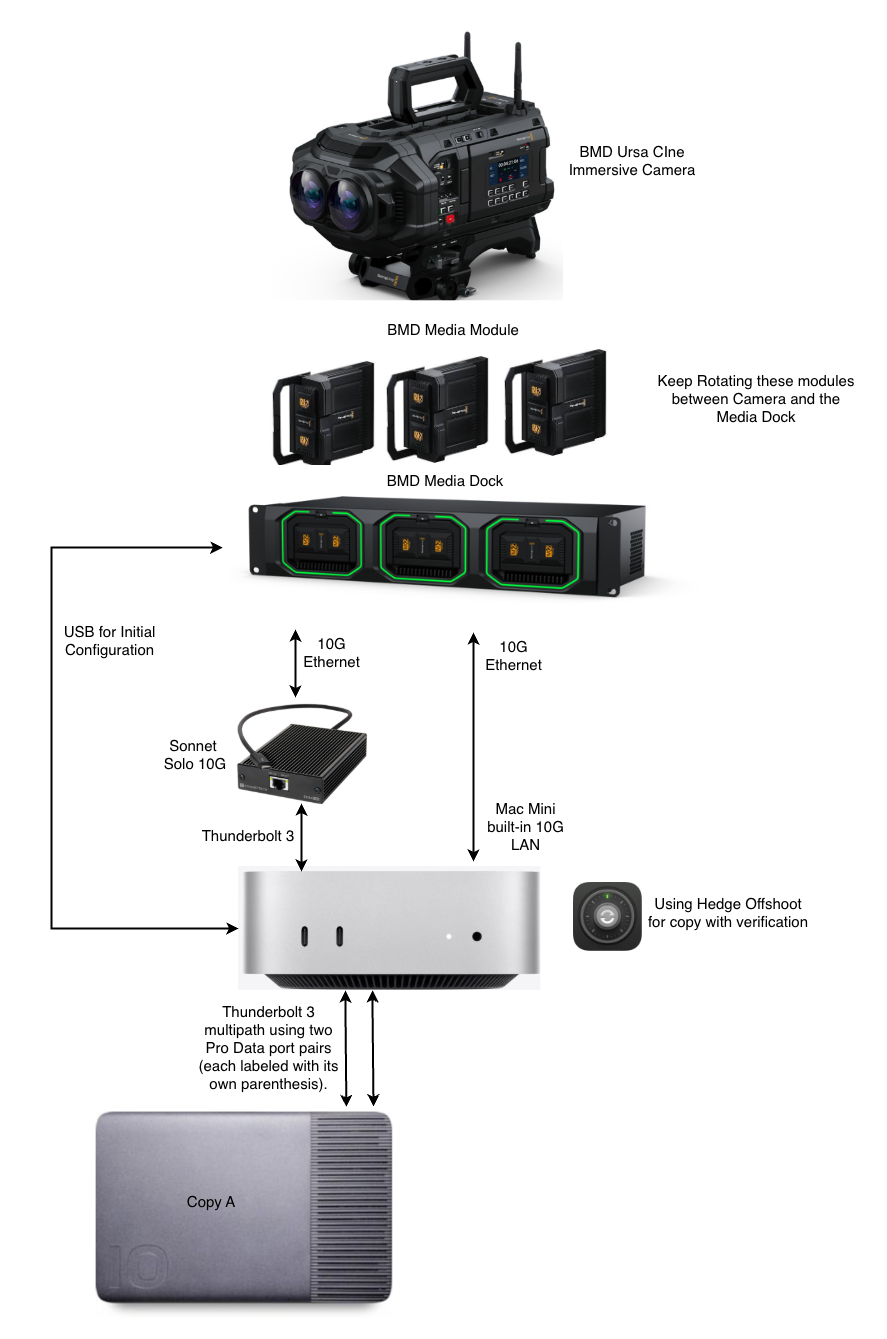
Workflow Ingredients
- Blackmagic Media Dock
- URSA Cine Immersive 8/16 TB Media Modules (number depends on your shooting ratio and day length)
- Mac mini with built-in 10G LAN
- 2 × Cat6 Ethernet cables (Mac mini ↔ Media Dock for 2×10G)
- 1 × iodyne Pro Data 96 TB or 192 TB (includes 2 × 1 m Thunderbolt cables)
- Sonnet Solo 10G (Thunderbolt → 10G adapter)
This gives you a simple, fast ingest path from URSA Cine Immersive to a RAID-6 protected, encrypted Pro Data, and leaves you free to design backups and media rotation the way that fits your production.
Step-by-Step Setup Guide
- Connect the USB cable from the Blackmagic Media Dock to your Mac mini’s front USB port. This is used for initial configuration and should be disconnected during ingest.
- Connect one 10G link using a Cat6 cable directly from the Media Dock to the Mac mini’s built-in 10G LAN port.
- To add an additional 10G connection, connect a Thunderbolt to 10G adapter (e.g. Sonnet Solo 10G) to the Mac mini, then connect a second 10G port from the Media Dock to the adapter.
- Download and install the latest Blackmagic Cloud Store software:
- SMB3 Multichannel support was added in firmware v1.6. When you launch the software and the Mac mini detects the Media Dock, you’ll be prompted to update the firmware if it’s not current. Update it. The dock will restart automatically.
- At this point, the Blackmagic Cloud Store software will connect to the dock via the USB connection so you can perform the initial configuration.
- Double-click on the dock’s module image to open the configuration page.
- Perform a factory reset to start with clean settings.
- After the Media Dock restarts, go to the Setup page and set Allow Utility Administration to via USB and Ethernet, then click Save.
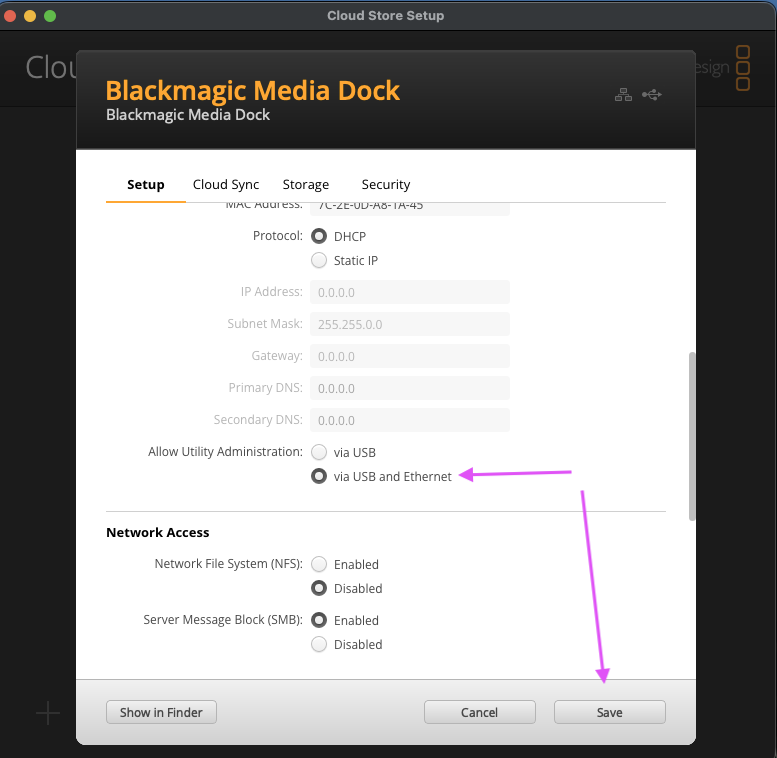
- Open the configuration page again, go to Security, and click the + button to add a new user.
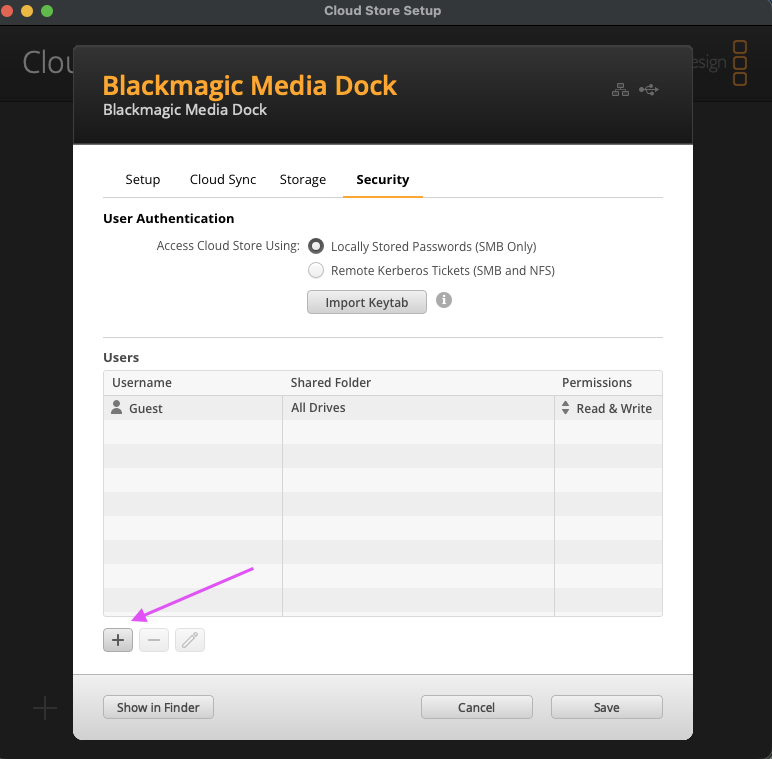
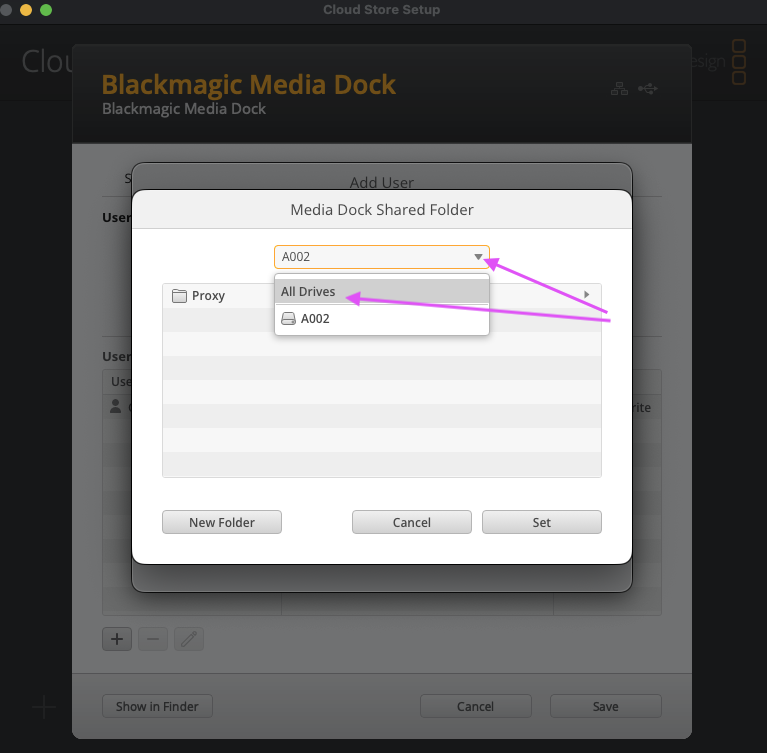
- Enter your preferred username and password, and check Enable Admin Access For This User. Click the + at the bottom left to assign which drives and/or folders are accessible for this user.
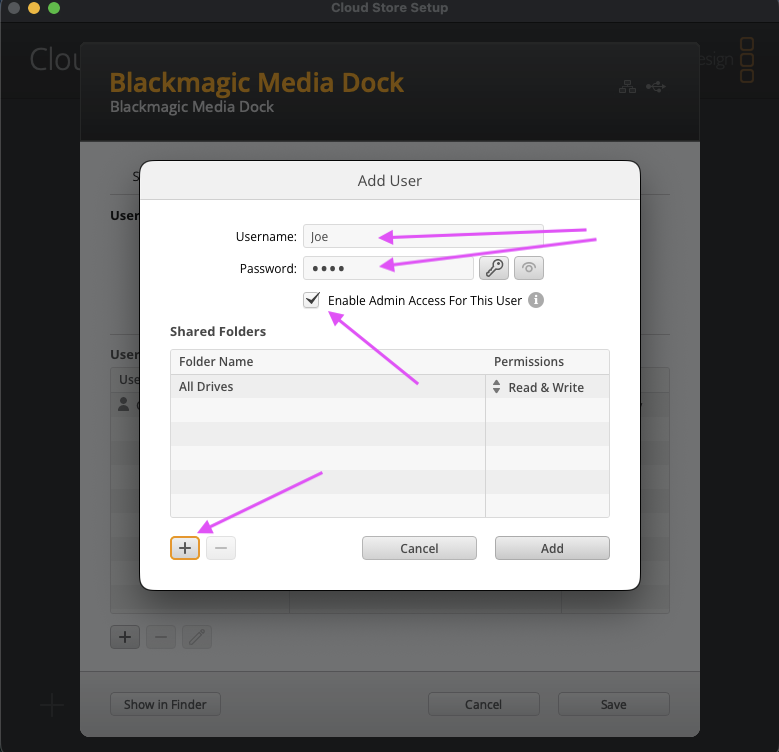
- If you don’t have a policy restricting access, set All Drives so this user can ingest from all inserted Media Modules. Click Set, then Save.
- Disconnect the USB cable so the Blackmagic Cloud Store software can detect the Media Dock over Ethernet. This may take about a minute.
- Once the Media Dock appears in the software, double-click it. When prompted for credentials, enter the username and password you created.
- Click Show in Finder at the bottom left to connect the dock’s volumes to macOS Finder. You’ll be prompted for your credentials again; enter the same username/password.
- Once the Media Modules appear on your desktop, launch Hedge Offshoot and start ingesting OCF to Pro Data a RAID-6 container immediately.
Quick check: is it working?
During ingest you should see:
- Both rear 10G LEDs on the Media Dock blinking green rapidly
- Offshoot averaging ~1.5 GB/s with ~1 hour 20+ minutes estimated to offload a full 8 TB module