A common issue ejecting any removable drive in Windows is seeing a message like “This drive/container is in use, do you want to force eject it?”. If you see this with your iodyne device, don’t worry. Pro Data containers appear to Windows as removable drives and behave the same way. In this guide, we’ll show you how to identify which applications is still using the drive and release the container safely.
NOTE:
Pro Data can create multiple containers, and each container is mounted in Windows as a separate removable disk with its own drive letter. The iodyne Utility shows the relationship between each container and its corresponding disk ID and drive letter.
1. Check the drive letter in the iodyne Utility
First confirm which drive letter Windows is using for your iodyne container.
- Open the iodyne Utility on your Windows computer.
- Find your connected iodyne container.
- Note the drive letter shown, for example B: in the screenshot below.
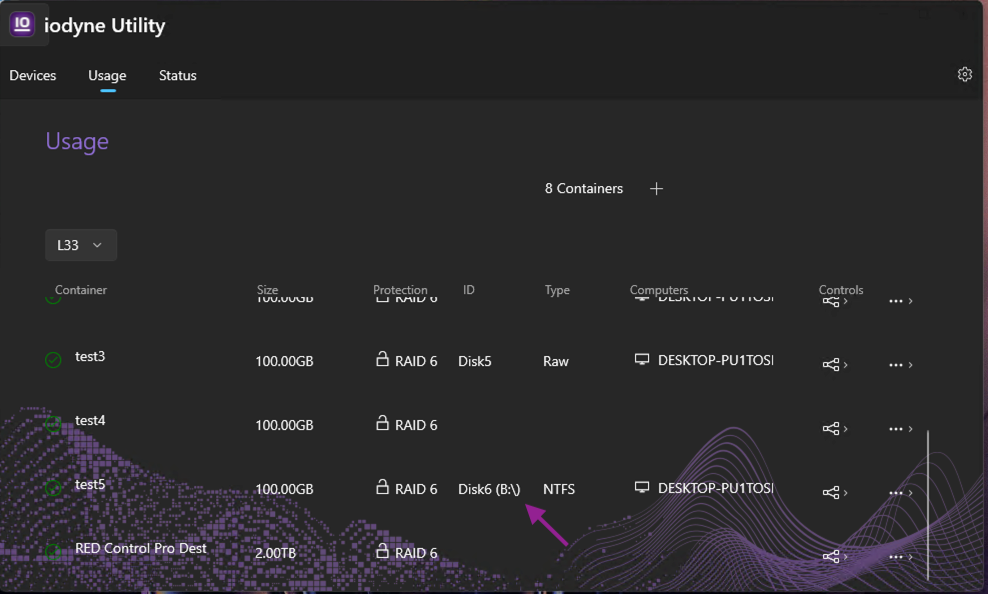
You will need this drive letter in the next steps to find out what might still be using the drive.
2. Close obvious apps and try ejecting from iodyne Utility
2.1 Close the obvious things first:
- Close any File Explorer windows that are open on that drive, for example B:
- Close apps that might be using files on the drive, such as:
- Office apps with open documents (ex: Word, Excel, PowerPoint)
- Media players or editors
- Web browsers downloading to that drive
- Backup or sync tools (OneDrive, Dropbox, Google Drive, backup agents) using the drive
- Command Prompt or PowerShell windows that are currently navigated to a folder on the drive
2.2 Retry ejecting from iodyne Utility
- In the iodyne Utility app, click the three dots next to the container.
- Click Eject.
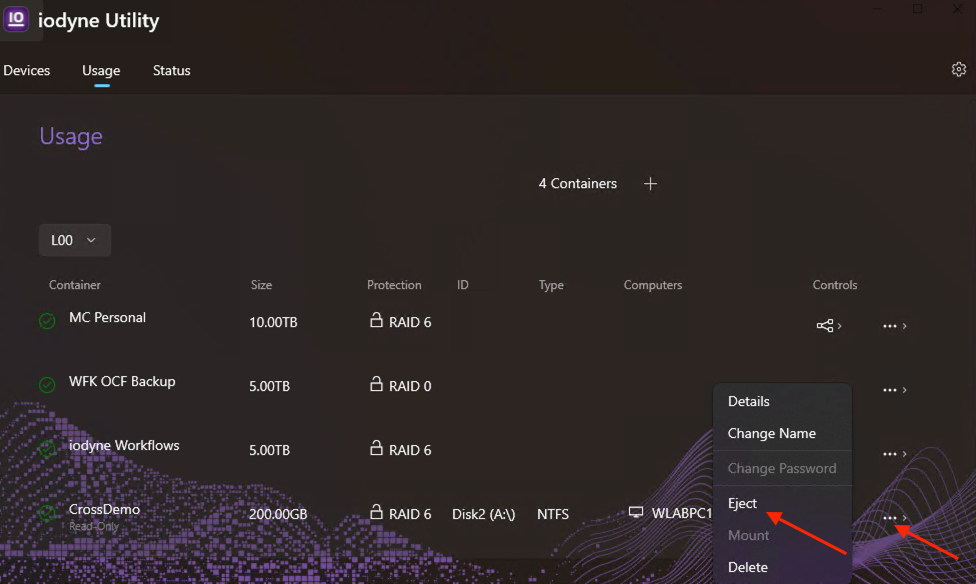
If the eject succeeds, or you successfully hand off the container from this host to another, you are done. This host is no longer using that drive.
If the eject does not succeed and the Utility offers Force Eject, pause and DO NOT force eject yet. Move on to the next section to track down what is holding the drive open.
3. Use Resource Monitor to find what is still using the drive
If normal eject flow are not working the way you expect, something on Windows is still holding files or folders open on that drive. Windows Resource Monitor can show which processes are doing this.
3.1 Open Resource Monitor
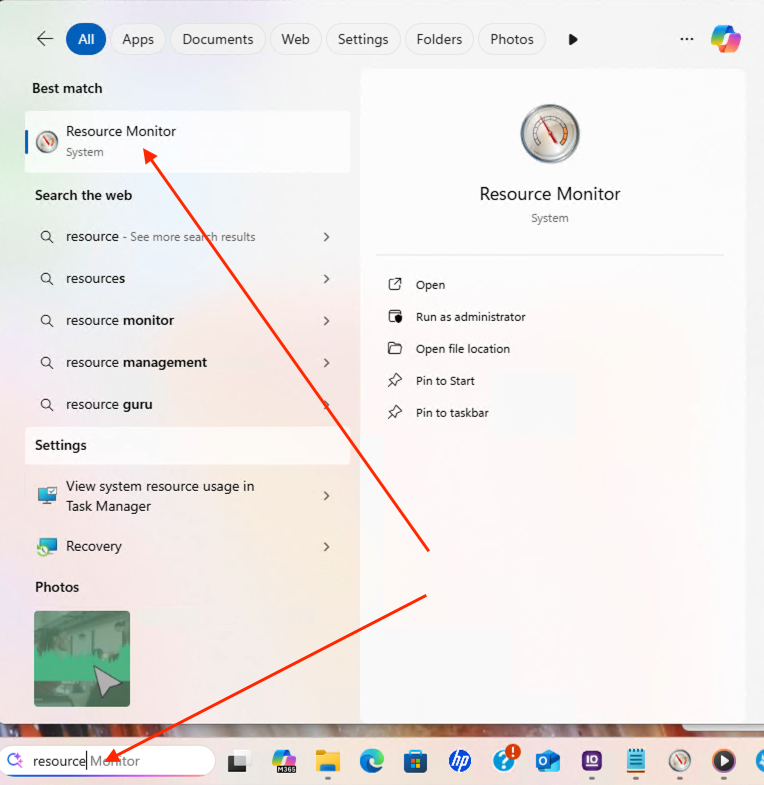
- Type resource in the search bar
- Click Resource Monitor
3.2 Filter by drive letter in Associated Handles
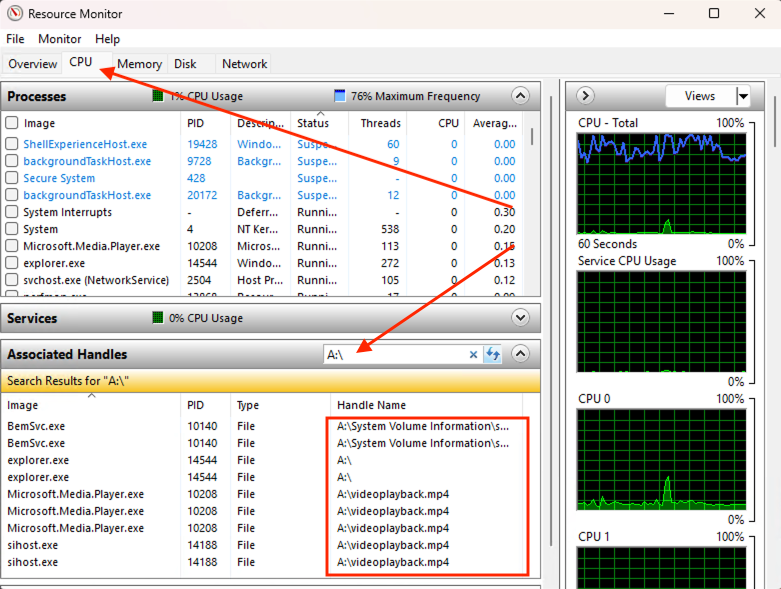
- In Resource Monitor, click the CPU tab
- In the lower part of the window, find the Associated Handles section
- In the search box, type your drive letter, for example B:\
- Press Enter
Resource Monitor will list any processes that have open handles on files or folders on that drive.
3.3 Close or end the processes using the drive
For each entry in the results:
- Look at the Handle Name column and identify the process name shown there.
- If this process corresponds to an app where you have unsaved work, save your work first
- Right click that process entry and select End Process
Some apps keep running in the background even after you close their main window, so check the list carefully.
NOTE: The Associated Handles list does not instantly refresh when you close an app. If needed, clear the search box, type the drive letter again, and press Enter to refresh the results.
After ending the processes that are still using that drive, try ejecting the container again from the iodyne Utility. If eject or handoff now succeeds on this host, you are done.
If the eject still fail and the Utility offers Force Eject, move on to the next section.
4. Use Force Eject
Force Eject is effectively the same as pulling the cable. It will disconnect the drive, but if anything is still writing to it, those writes can be interrupted and files may not save correctly. Use Force Eject only as a last resort, after you’ve tried normal eject and closed anything that might be using the drive.
If the eject still does not succeed and the Utility offers Force Eject, pause and confirm that:
- All copies, backups, renders, and exports to that drive have finished.
- You have saved your work in any app that was using files on that drive.
- You have closed obvious apps and tools that might be accessing the drive.
- You have checked Resource Monitor and ended any processes still using the drive.
Only when you are confident the drive is no longer in active use should you confirm Force Eject in the iodyne Utility.
If you often see an antivirus or endpoint protection process in the Handle Name column holding the drive open, the next section explains how to handle that.
Antivirus conflicts
Windows runs many background processes that monitor, index, sync, or scan files. On externally mounted storage like iodyne Pro Data, these services can hold files or directories open, delay writes, and block a safe eject. A very common cause is antivirus or endpoint security performing real time scans on the volume.
In the example below, a service called BemSvc.exe appears as the process that is still accessing the drive. This is an HP Wolf Security monitoring service that performs endpoint protection.
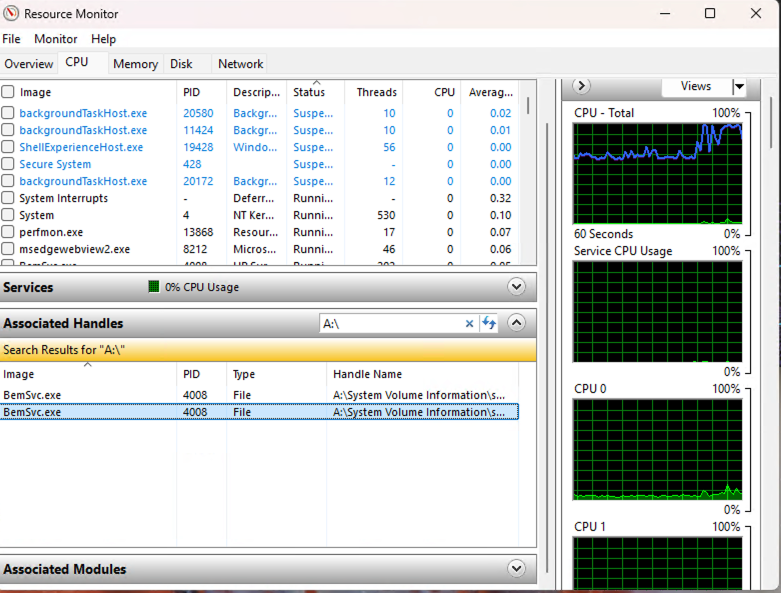
If you find that antivirus (or another system service) is consistently blocking your drive ejection and you want smoother operation, you can consider adding the Pro Data container to the antivirus exclusion list so it is not scanned in real time.
Before you do this, think about what you store on Pro Data:
- If you typically store only non executable files on Pro Data, such as documents, media, project files, and caches, excluding Pro Data containers from real time scans usually does not create a major security risk, because your antivirus still protects the applications that open and read those files
- Any exclusion reduces scanning coverage, so only apply it if it fits your security policy and workflow
If your computer is managed by an IT department, always check with your system administrator before changing antivirus settings. In many organizations, only IT can create or approve AV exclusions.
If you must retain antivirus scanning, you can test ejecting Pro Data containers with different AV settings. It may be possible to adjust modules, schedules, or products so that Windows eject is honored without turning off protection.
The steps below show common ways to exclude Pro Data containers from antivirus scans when this setting is appropriate for your workflow.
Step 1. Verify the drive letter in iodyne Utility
Before adding exclusions, confirm which drive letter corresponds to your Pro Data container, as described in section 1. Use that same drive letter when you create AV exclusions.
Step 2. Add the drive letter to your antivirus exclusions
2.1 For personal antivirus
Most personal antivirus tools allow you to exclude specific drives or folders from real time scanning. Exact labels vary, but the general steps are:
- Open your antivirus settings. Look for Settings, Protection, or Security
- Find the Exclusions or Allow List section. It might be labeled Exclusions, Safe List, or Folders not to scan
- Add a new exclusion and choose to exclude a folder or drive
- Select your Pro Data drive letter, for example B:\ or O:\
- Save and confirm by clicking Apply or OK
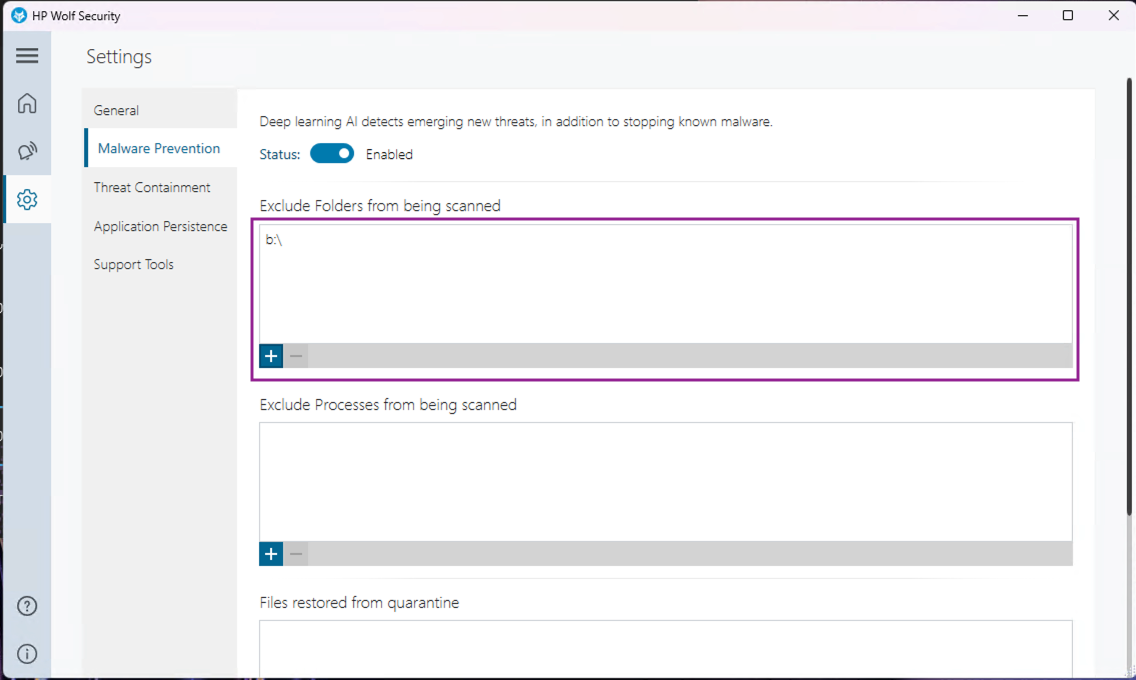
Example: HP Wolf Security
- Open HP Wolf Security and go to Settings
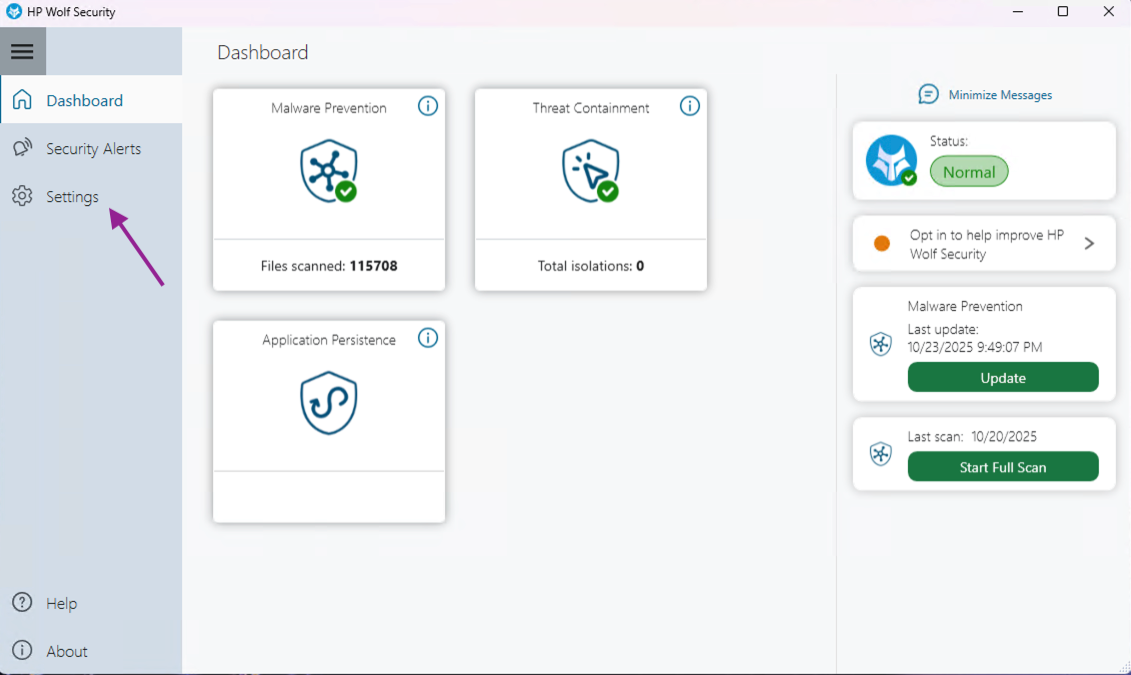
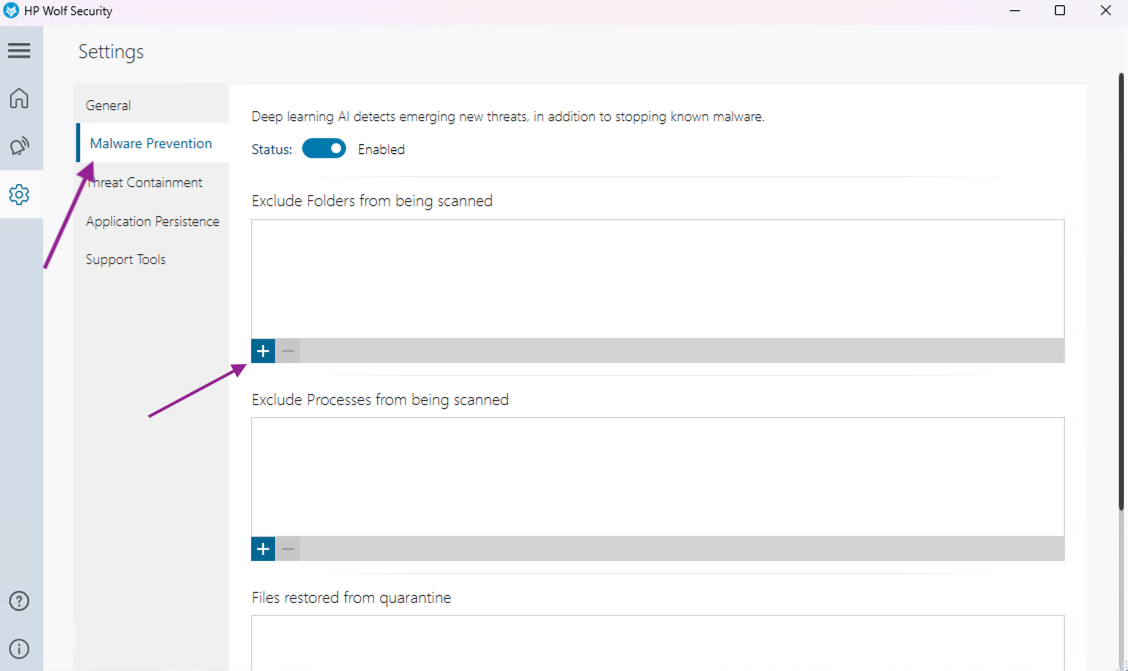
- Go to Malware Prevention and under Exclude Folders from being scanned, click +
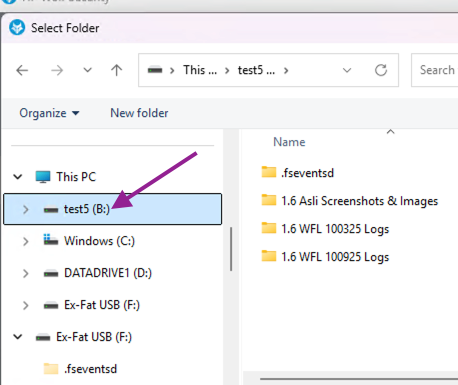
- Select your Pro Data drive, for example B:\
- Confirm that the Pro Data container now appears in the exclusions list
2.2 For corporate or managed antivirus
If your system is managed by IT, request that your administrator add exclusions for your Pro Data drive letters, such as B:\ or O:\.
Ask them to exclude the drive for both:
- Real time or on access scans
- On demand or scheduled scans
In enterprise consoles like ESET Protect, Bitdefender for Business, or HP Wolf Security Controller, the workflow is typically (Bitdefender here):
- In the organization security console, go to Policies or Configuration Profiles
- Open the Exclusions section and choose Add exclusion
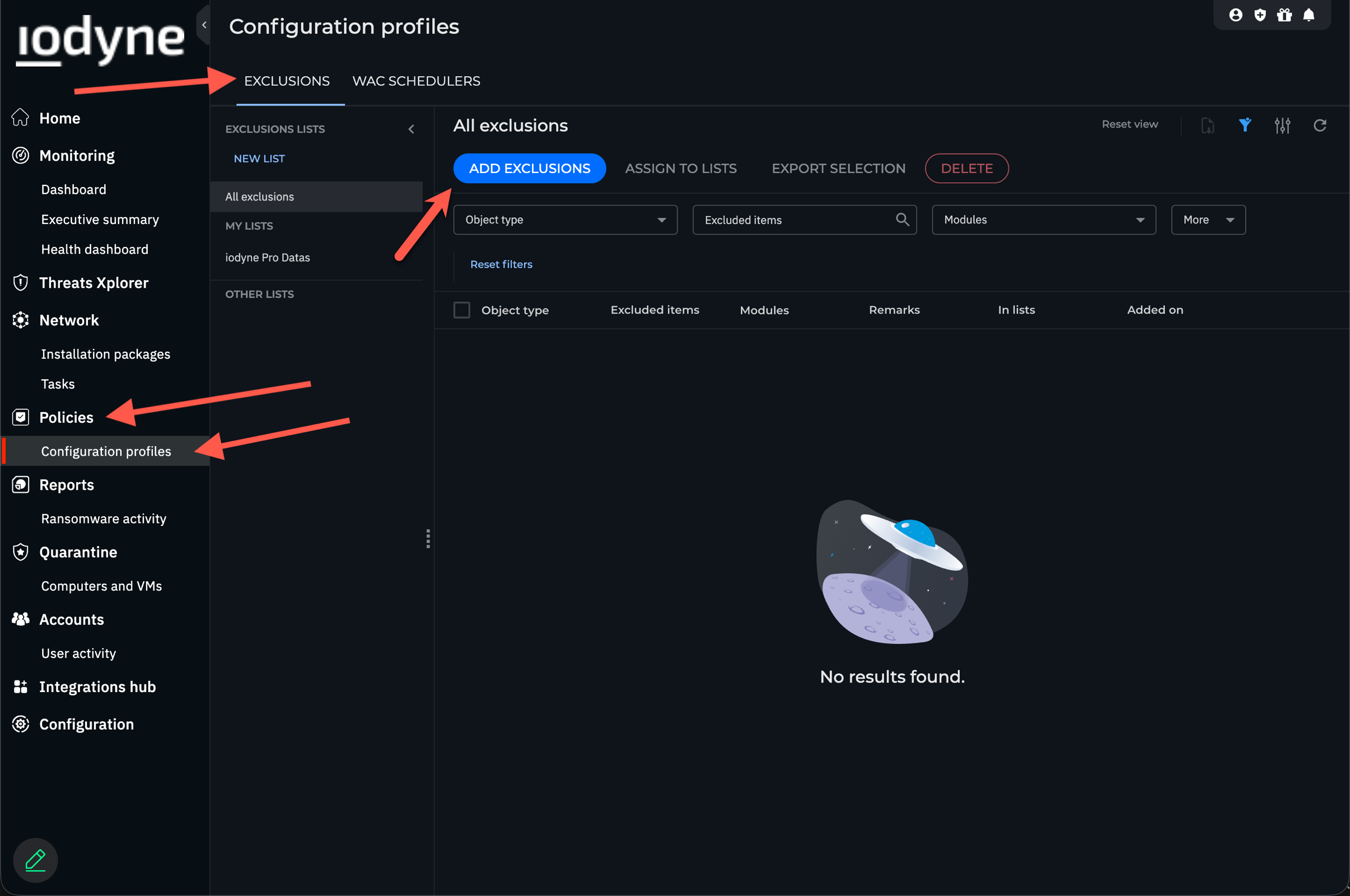
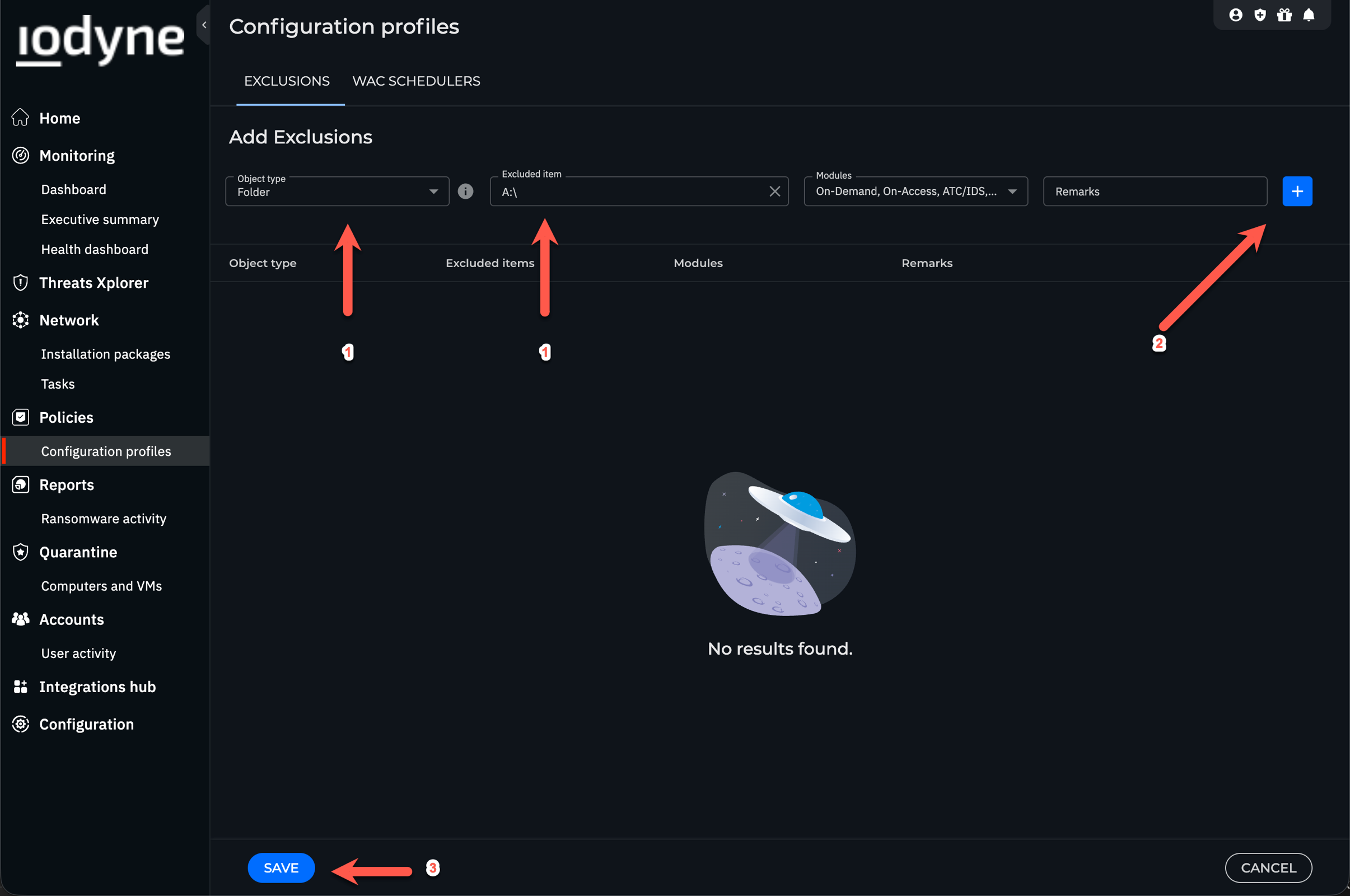
- In the Add Exclusions dialog:
- Object Type: Folder
- Excluded Item: Enter the drive letter, for example B:\
- Modules: Choose the scan modules that should ignore this drive, for example On Demand, On Access, and IDS or their equivalents
- Click the add or plus icon, then Save
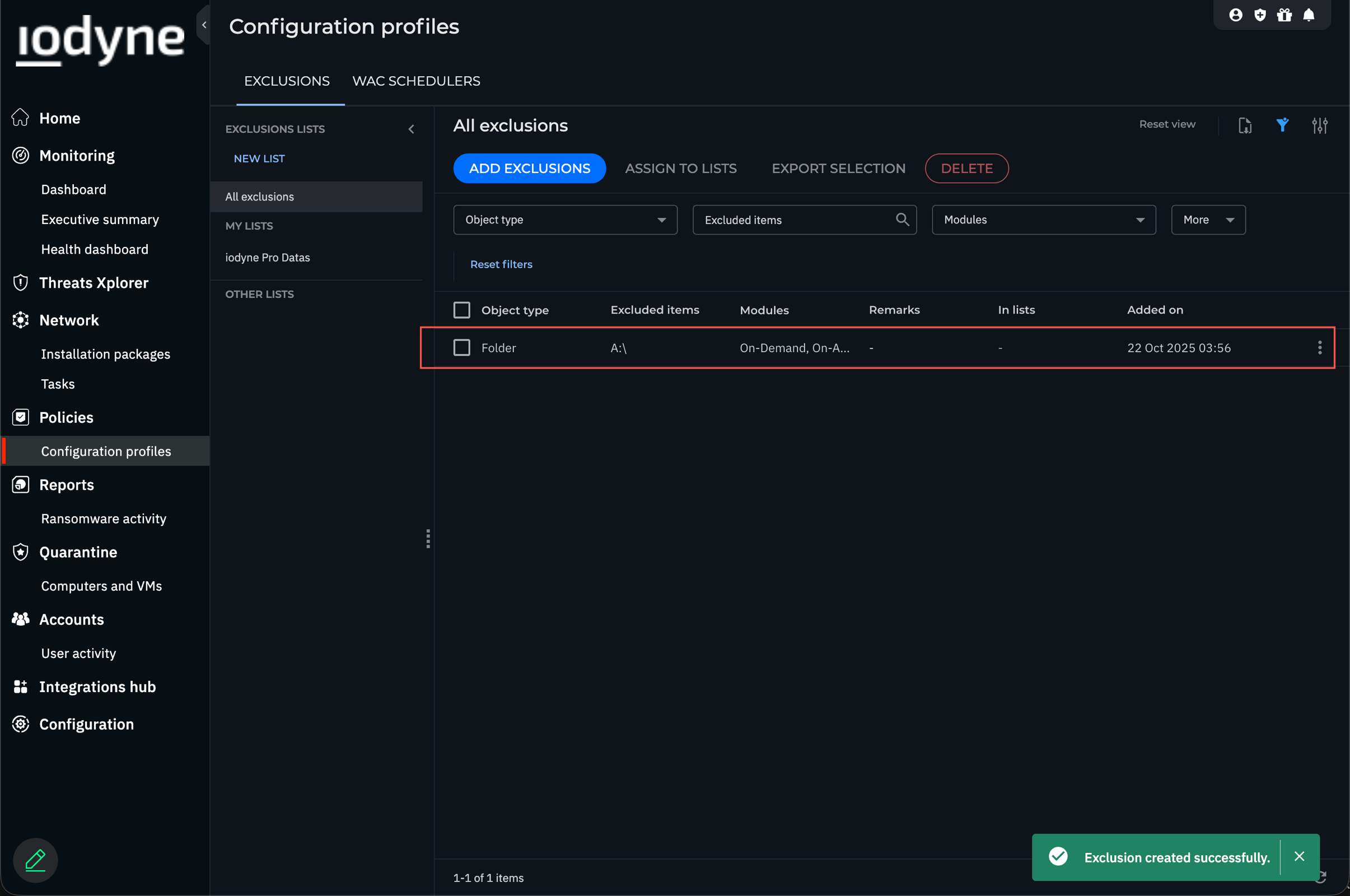
- Verify that the exclusion appears in the All Exclusions list and is applied to the correct machine group
This concludes the antivirus guidance.
NOTE: Drive letters can change
When you eject and remount a container, Windows may assign a different drive letter. If that happens:
- You can repeat the same antivirus exclusion steps for the new letter
- Or you can manually change the drive letter back to the one already used in your exclusion list
How to change a drive letter?
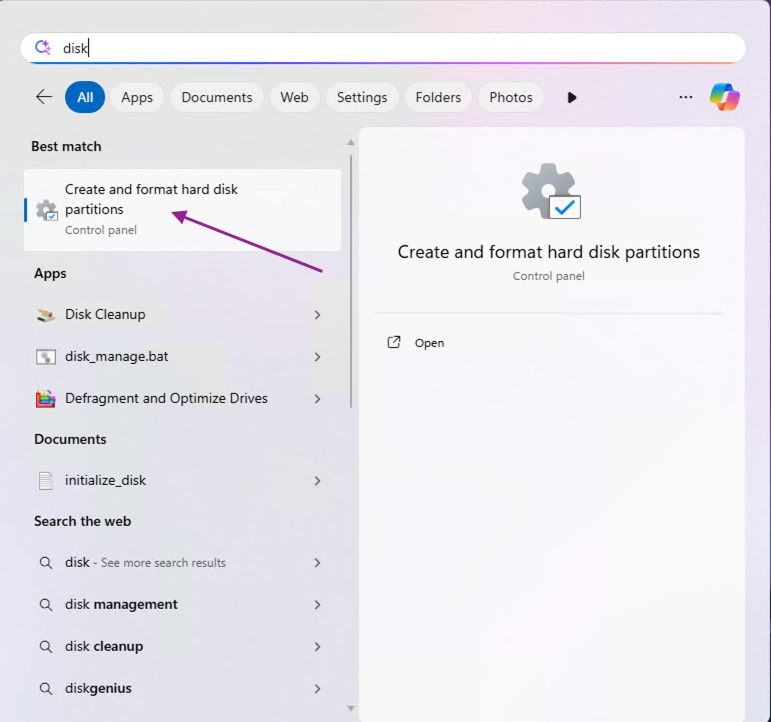
- In the Start menu, search for Create and format hard disk partitions and open it
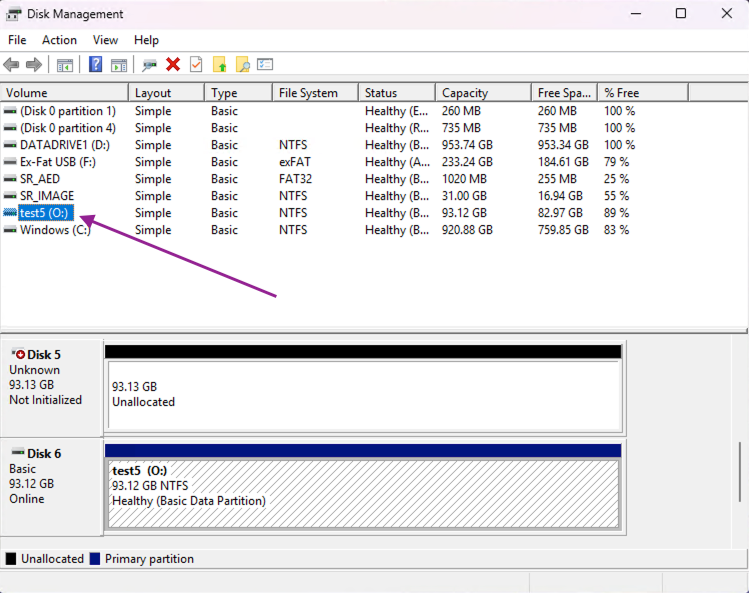
- In Disk Management, right click the Pro Data drive and choose Change Drive Letter and Paths…
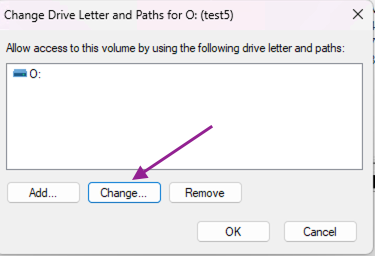
- Click Change…
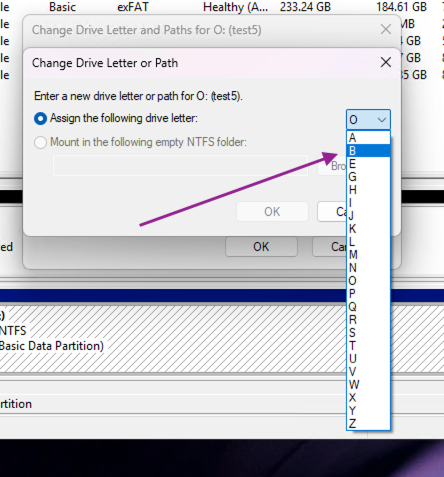
- Pick the letter that is already used in your antivirus exclusion list, for example B:, then click OK and confirm with Yes
You are now set up for smoother, safer ejects, clean handoffs between hosts, and reliable zero copy workflows across your Pro Data containers.